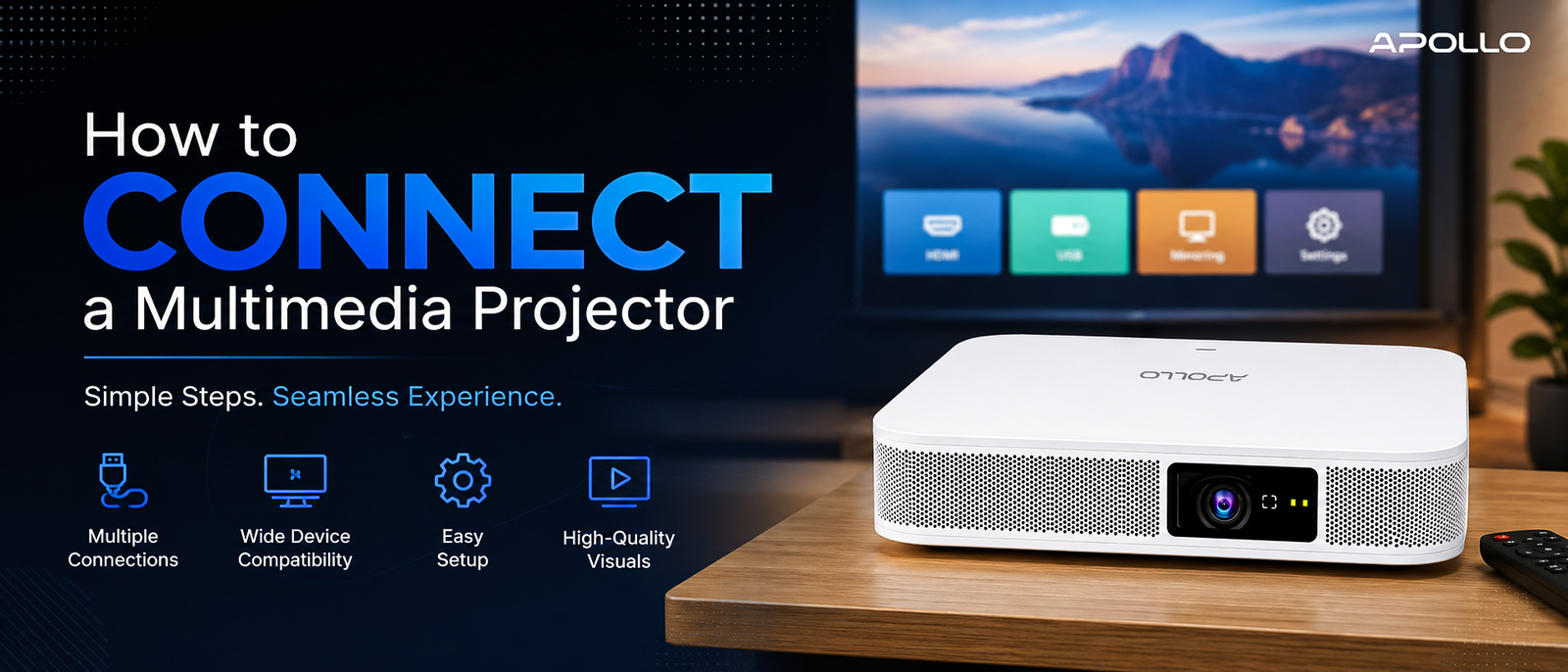
Whether you're setting up a conference room in office or a client presentation space anywhere in between, knowing how to connect a multimedia projector correctly can save you from awkward delays and lost credibility. This guide walks you through the entire process — from choosing the right cable to troubleshooting the dreaded "no signal" screen — with practical advice built specifically for Bangladeshi office environments.
How to Connect a Multimedia Projector: A Complete Guide for Bangladeshi Offices
Your client is waiting. The boardroom is full. And your projector just won't talk to your laptop. If this sounds familiar, you're not alone — it's one of the most common tech headaches in corporate Bangladesh, and it almost always comes down to a handful of fixable mistakes.
Whether you're setting up a conference room in OFFICE or a client presentation space anywhere in between, knowing how to connect a multimedia projector correctly can save you from awkward delays and lost credibility. This guide walks you through the entire process — from choosing the right cable to troubleshooting the dreaded "no signal" screen — with practical advice built specifically for Bangladeshi office environments.
Why Projector Setup Still Trips Up Corporate Teams
Multimedia projectors have become standard equipment in Bangladeshi offices, from banks and NGOs to garment-sector head offices and IT firms. Yet even experienced professionals struggle with basic setup because:
- Meeting rooms often mix old and new equipment (VGA projectors with HDMI-only laptops)
- IT support isn't always on-site during early morning or after-hours meetings
- Power fluctuations, common in many parts of Bangladesh, can cause connection drops
- Staff frequently switch between wireless and wired setups without understanding both
Best multimedia projectors for corporate offices
Step-by-Step: How to Connect a Multimedia Projector
1. Choose the Right Cable or Connection Method
Before touching any cables, identify what your laptop and projector support:
- HDMI – Best for modern laptops; carries both video and audio
- VGA – Still common in older or budget projectors; video only, no audio
- USB-C / Thunderbolt – Increasingly common in newer ultrabooks
- Wireless (Wi-Fi/Miracast/Screen Mirroring) – Ideal for cable-free boardrooms
If you're upgrading your office setup, it's worth checking Interactive Flat Panel vs Projectors — which is best for your office /business
2. Position and Power On the Projector
- Place the projector at the correct throw distance from the screen or wall
- Connect it to a stable power source — a voltage stabilizer is strongly recommended for occasional power fluctuations
- Turn on the projector before connecting your laptop; this helps most devices auto-detect the signal
3. Connect Your Laptop to the Projector
- Plug the cable into your laptop's video output port
- Plug the other end into the projector's input port (make sure you select the matching input, e.g., HDMI 1 or VGA)
- On Windows, press Windows + P to choose your display mode (Duplicate, Extend, or Second Screen Only)
- On Mac, go to System Settings > Displays and select Detect Displays
4. Adjust Focus, Keystone, and Resolution
Once the image appears:
- Use the focus ring to sharpen the picture
- Adjust keystone correction if the image looks trapezoidal instead of rectangular
- Match your laptop's resolution to the projector's native resolution for the clearest output (usually 1920x1080 for Full HD units)
5. Set Up Audio (If Needed)
VGA connections don't carry sound, so you'll need a separate 3.5mm audio cable or Bluetooth speaker if your projector lacks built-in audio output. HDMI connections typically handle audio automatically.
Wireless Projector Setup: The Modern Office Standard
More corporate offices are moving toward wireless projection for cleaner meeting rooms and faster turnovers between presenters. To connect wirelessly:
- Ensure both the projector and laptop are on the same Wi-Fi network
- Use the projector's built-in casting app (or a dongle like a wireless HDMI transmitter)
- Enable Screen Mirroring (Windows) or AirPlay (Mac) from your device's display settings
Tips to Improve Conference Room Audio Quality 2026
Common Projector Connection Problems (And Quick Fixes)
| Problem | Likely Cause | Fix |
|---|---|---|
| No signal detected | Wrong input source selected | Press "Source" or "Input" on the remote |
| Blurry image | Focus ring or resolution mismatch | Adjust focus; match native resolution |
| No sound | Using VGA without separate audio cable | Add a 3.5mm cable or Bluetooth speaker |
| Flickering screen | Loose cable or power instability | Check connections; use a stabilizer |
| Laptop not detected | Display mode not switched | Press Windows + P or use Detect Displays |
Tips for a Smooth Corporate Presentation Setup
- Test your setup at least 15–20 minutes before an important meeting
- Carry a universal adapter (USB-C to HDMI/VGA) if you switch between devices often
- Keep a spare HDMI and VGA cable in your meeting room cabinet
- Assign one staff member per floor as the "projector point of contact" for quick troubleshooting
- Schedule annual maintenance checks, especially for bulb-based projectors
Choosing the Right Multimedia Projector for Your Office
Not all projectors are built for Bangladeshi corporate environments. When comparing models, prioritize:
- Brightness (Lumens): 3000+ ANSI lumens for rooms with natural light
- Connectivity: HDMI, USB, and wireless support as standard
- Power stability handling: Look for built-in surge protection
- Portability: Useful for teams presenting across multiple branches
Compare Apollo Vision Tech's projector range for offices
FAQ: Multimedia Projector Setup for Offices
1. How do I connect a projector to a laptop without HDMI?
Use a VGA cable if your laptop has a VGA port, or a USB-C to HDMI/VGA adapter for laptops with only USB-C ports.
2. Why does my projector show "No Signal" even after connecting the cable?
This usually means the wrong input source is selected on the projector, or the laptop's display output hasn't been switched (try Windows + P).
3. Can I connect a multimedia projector wirelessly in a Bangladeshi office with unstable internet?
Yes — most wireless projection methods use local Wi-Fi Direct rather than internet access, so a stable internet connection isn't required, only a functioning local network.
4. What's the best projector connection for large corporate boardrooms?
HDMI is generally best for image and audio quality, while wireless casting systems are ideal for boardrooms hosting multiple presenters.
5. How often should office projectors be serviced?
Most manufacturers recommend a check every 6–12 months, particularly for lamp cleaning and filter maintenance, to prevent overheating and dimming.
Learning how to connect a multimedia projector properly isn't just a technical skill — it's a small investment that protects your company's professionalism during every client meeting, training session, and boardroom presentation. With the right cables, a bit of preparation, and equipment suited to Bangladesh's power and connectivity conditions, you can eliminate last-minute setup panic for good.
Looking for a reliable multimedia projector built for Bangladeshi offices?
Browse Apollo Vision Tech's full projector lineup and equip your meeting rooms with technology that just works.